How to Connect Your X Account to Fomo
Link X to Fomo in Settings, then Profile and Account. What it changes about your username, name and photo, how to unlink, and fixes for common errors.

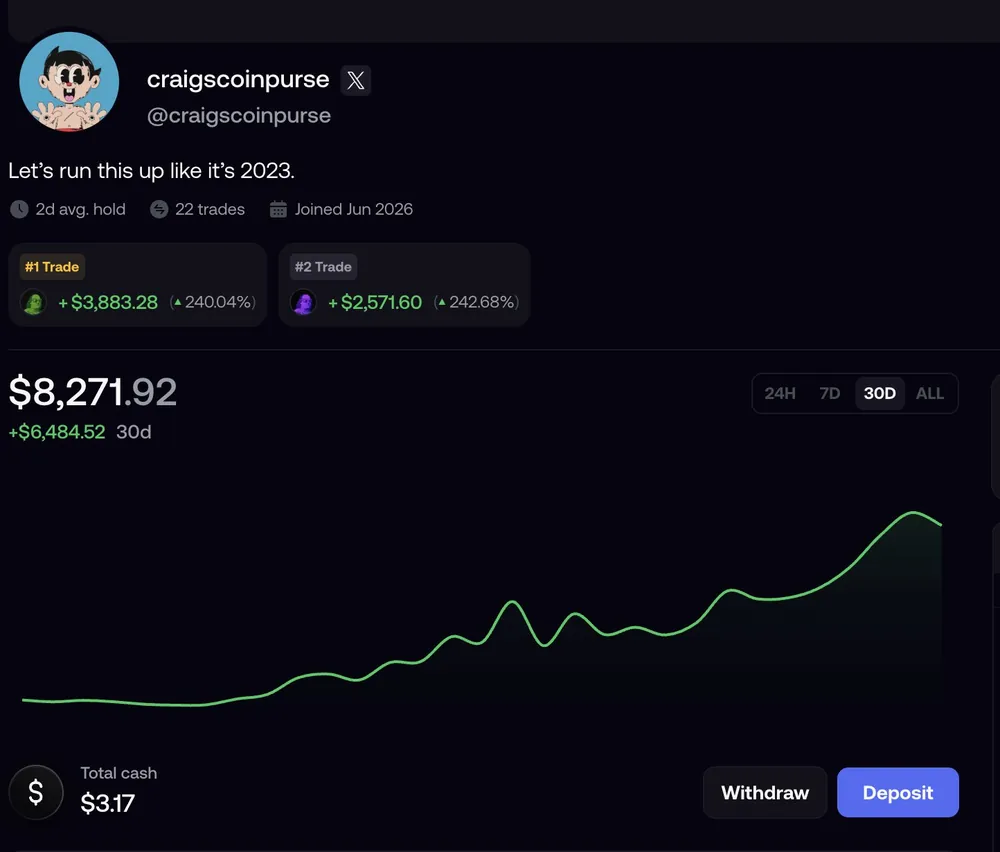
To connect your X account to Fomo, open the Portfolio tab, tap the gear icon, then Profile and Account, and tap Link X under your login email. On the web it's Settings, then Profile, then Link X account. Linking is optional. It sets your Fomo display name, photo and username to the ones on X, and puts a small X badge next to your name.
It takes a minute, and you can unlink at any time. Before you do it, though, know what it changes about your username and what other traders will see.
How to link X on the phone
- Open the Portfolio tab. Its icon is your profile picture, at the far right of the bottom bar.
- Tap the gear icon at the top right to open Settings.
- Tap Profile and Account.
- Tap Link X, just under your login email.
- Sign in to X if asked and approve the connection.
Once linked, the row shows your X username. Tapping it gives you the option to unlink.
How to link X on the web
At fomo.family, hover your profile picture at the top of the page, open Settings, then Profile, and use Link X account. The result is the same as on the phone, because the link belongs to your account, not to the device.
What changes when you link X
- Your display name and photo switch to the ones on your X profile.
- Your username matches your X handle and can't be changed on its own while X is linked.
- An X badge appears beside your name on your profile, so people can tell the account belongs to that X user.
- Your handle is claimed. Linking is how you take your X handle as your Fomo username. A handle that belongs to an established X account is kept for that account, and one another Fomo user already holds can't be taken.
What doesn't change: your wallets, your balance and your trades. Sharing a trade card to X stays something you choose each time, from the Share button on a position.
Why people link X
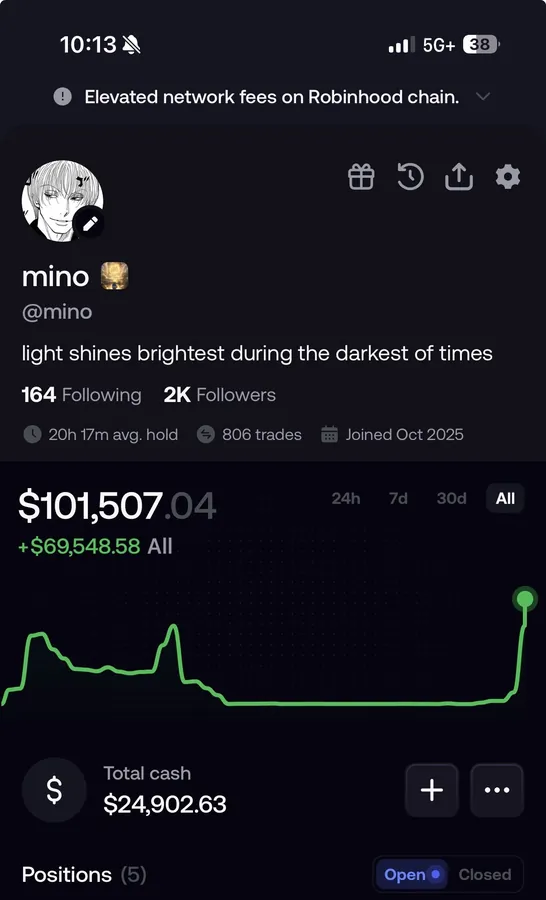
Fomo is a social app. Your trades and theses show in the feed, and the leaderboard ranks people by results. A profile with a recognisable name and photo gets followed; an anonymous one with a default avatar mostly doesn't. If you post about trades on X already, linking ties the two together so followers can find you.
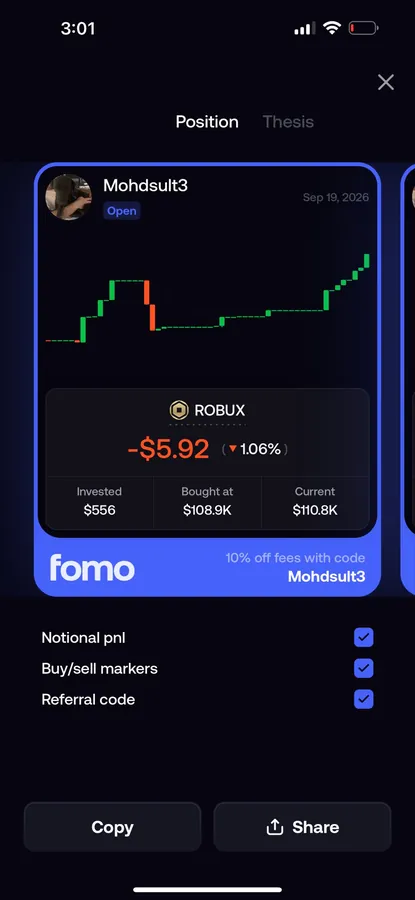
It also helps if you share trade cards. A share card made in Fomo carries your name and, if you switch it on, your referral code, so a linked profile makes the card point back to the right person.
Why you might not
Everything you do on Fomo is public by default: positions, profit and loss, theses. Linking X puts your public X identity on top of that record. If you'd rather trade without people connecting your Fomo activity to your X account, skip it and pick a username that isn't your handle. You can still follow traders, post theses and climb the leaderboard without X.
How to unlink or change your username
Go back to Settings, then Profile and Account, and tap your X username to unlink. After that you can set any available username. To use a different X account, unlink first, then link the new one. Each X account can be connected to only one Fomo account at a time, so an X account linked to an old Fomo account has to be unlinked there first.
Common problems
Fomo won't let me take my X handle
Either another Fomo user already has it, or the handle belongs to an established X account that isn't yours. Linking your own X account is the only way to claim a handle that's reserved for it.
Linking says the X account is already in use
That X account is linked to another Fomo account, maybe one you made by signing in with a different Apple ID or Google login. Sign in to that account, unlink X there, then link it again from the account you want to keep.
I unlinked X and my name changed back
That's expected. Your display name and photo came from X. Set new ones in Profile and Account after unlinking.
Related: how to create a Fomo account, and how to hide your balance and tokens if you want more privacy on screen.
 Written by Mohammad ShahpariCrypto and SEO specialist
Did this answer your question?
Thanks for the feedback.