Find Your Way Around the Fomo App: A Tab-by-Tab Tour
A tab-by-tab tour of the Fomo app: Home, Search, Feed, Leaderboard, Portfolio, Settings, the language menu and how the web app differs.

The Fomo app has five tabs along the bottom of the screen, and almost everything you need sits one or two taps away from them. This tour walks through each tab in order, then covers Settings, the language menu and how the web version at fomo.family differs from the phone app.
Trading words you don't know yet are in the Fomo glossary. For the big picture, read what the Fomo app is and how it works. If you have not signed up yet, start with how to create a Fomo account and come back here once you are in.
The five tabs at a glance
From left to right, the bottom bar holds Home, Search, Feed, Leaderboard and Portfolio. The Portfolio tab has no word label in most layouts. Its icon is your own profile picture, which confuses a lot of new users on day one.
Home: your balance and the token lists
The top of the Home screen shows your portfolio value and a Deposit button. Below that you see a Weekly Top Trades section with some of the best trades on the app that week.
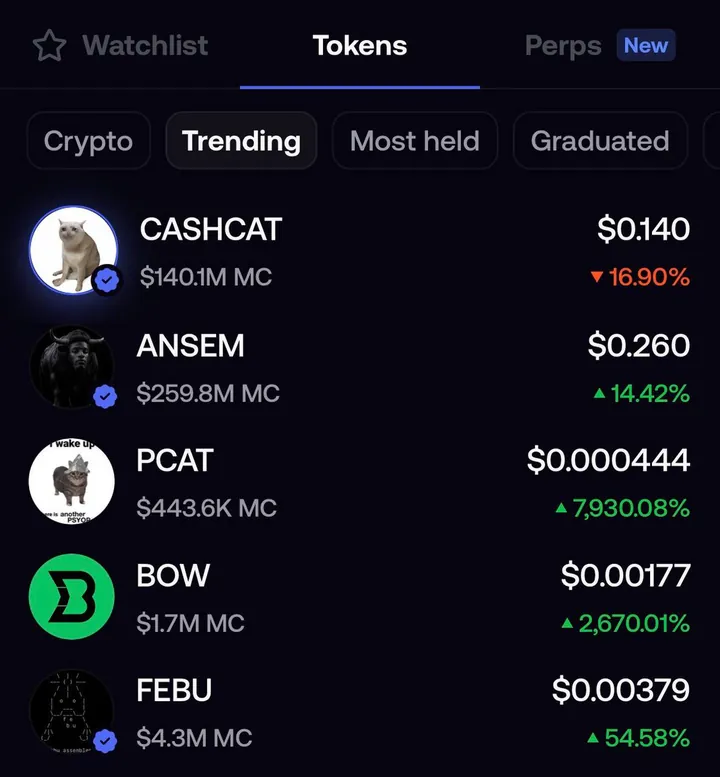
Under those sit three tabs. Watchlist holds the tokens and perps you starred, plus anything you already hold. Tokens is the main list of coins. Perps opens the perpetual futures markets, which carry more risk than spot trades and suit people with some experience.
Filters on the Tokens list
The Tokens list has filters along the top: Crypto, Trending, Most held, Graduated, Bonding, Gainers and Community. Most held is a good place for a beginner to look first, because it shows coins that many Fomo users own. Bonding shows brand new coins that are still on their launch curve, and those swing hard in both directions.
Tap the star on any token page to add it to your Watchlist. That saves you from searching for it again.
Search: tokens, traders and clans
The second tab looks up tokens by name or by contract address. It also finds perps markets, other traders and clans. If someone shares a contract address with you, copy it and tap the Paste button in Search. That opens the exact token and avoids lookalike coins with the same name.
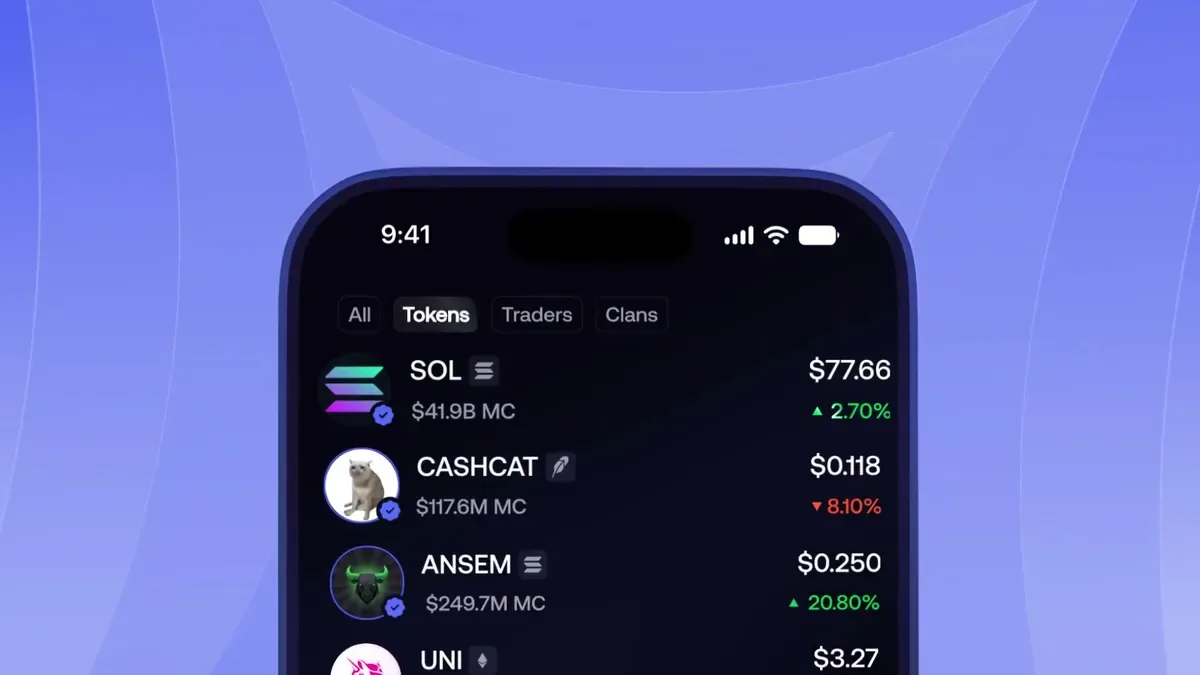
New users ask about clans a lot. People post that they made a clan and then their friends reply that they can't find it in the app. Search is the answer here. Type the clan name and pick it from the Clans results. Exact spelling helps, since several clans can share similar names.
Feed: what other traders are doing
The middle tab is the social feed. Trades and thesis posts show up here as they happen. Each post shows who traded, which token, how much and their profit or loss.
At the top you can switch between Global and Following. Global shows activity from everyone on Fomo. Following shows only the traders you follow, so it gets quiet if you follow nobody yet.
The filter icon opens a sheet where you choose which kinds of posts appear. If your feed looks empty or a friend's trade is missing, open Filters and tap Reset, or set Minimum size to All. Filters save on each device, so your phone and laptop can show different feeds.
Some new users ask where the button to post content is. Fomo has no blank post button. Your posts are your trades and your theses. To write a thesis, open the page of a token you hold and tap Add thesis on your position. A thesis can run up to 3,000 characters and shows on your profile, the token's feed and the main feed.
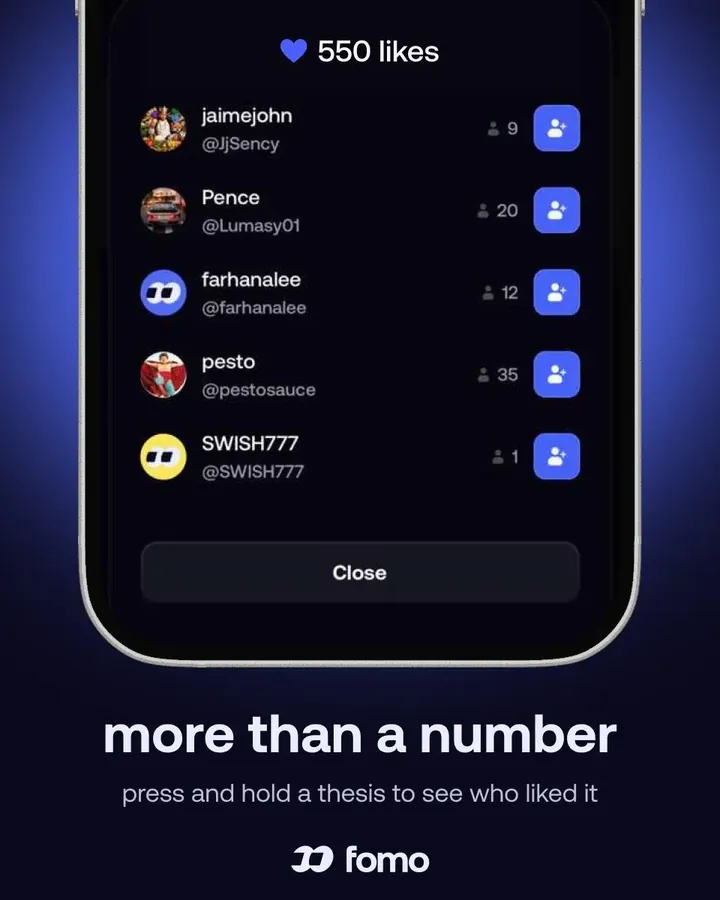
Press and hold a thesis to see who liked it. It helps you find traders with similar taste in coins.
Leaderboard: ranked by results
The fourth tab ranks traders by their real profit and loss for each time window. Follower counts play no part. On the phone it has three tabs: Traders, Positions and Clans. Positions ranks single closed trades instead of people.
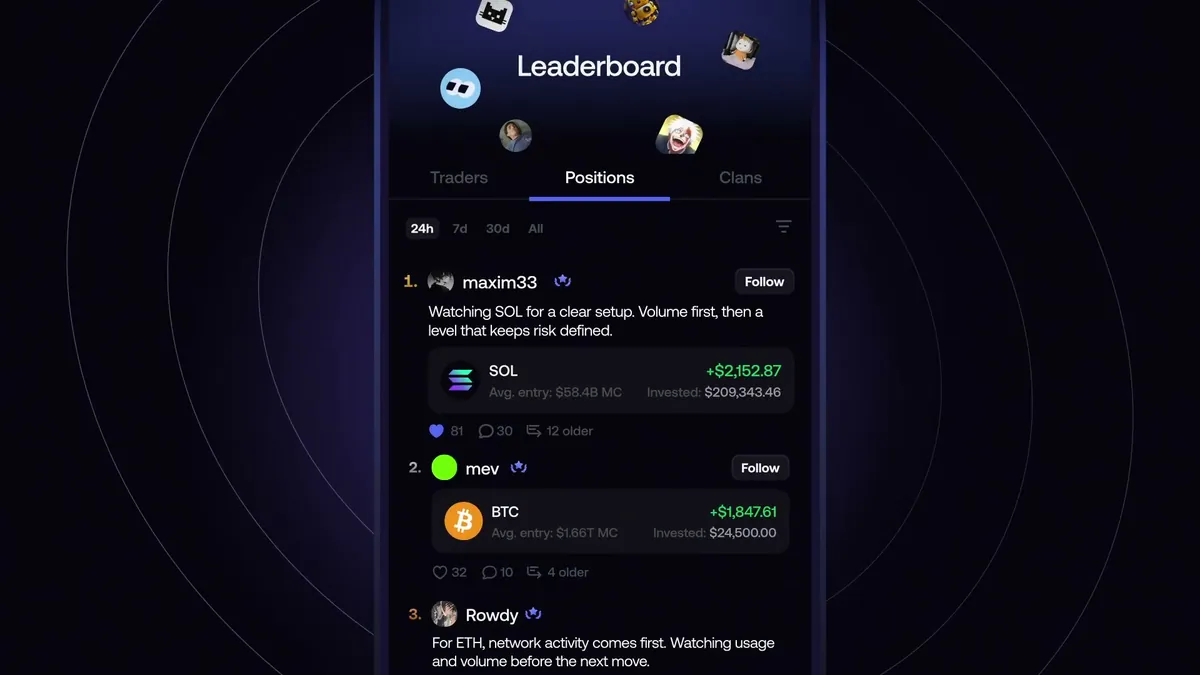
The Following switch sits inside the filters and narrows the board to people you follow. If you see Following and Leaderboard tabs at the top instead of this layout, your app is out of date, so update it from your app store.

The top 100 traders on the all-time board get a Top 100 badge beside their name. Ranks one to three get a gold, silver or bronze badge. Tap any trader to see their positions, theses and history before you follow them.
Portfolio: your profile and your money
The far right tab, the one with your avatar, is your own profile. It shows your display name, follower and following counts, your cash balance and your open and closed positions.
Two small controls sit next to your cash balance. The plus sign opens deposits. The three dots open Withdraw and Send. People miss these all the time, because they look for a big Withdraw button that the screen does not have.
Settings and where to change the language
Open the Portfolio tab and tap the gear icon in the top right corner. Settings holds these sections: Profile and Account, Appearance and Haptics, Language, Notifications, Security, Deposit and Withdraw, Legal and Privacy, Taxes where your account has it, Help and Support, Discord and Logout.
Profile and Account is where your wallet addresses, your X connection and your display name live. Security holds multi-factor authentication and Screen Lock. Turn both on before you add much money.
Changing the app language
Tap Language in Settings and pick one of seven options: English, Deutsch, Español, Français, Chinese, Japanese or Português (Brasil). The phone app also has a System option that follows your phone's language.
Theses and comments from other traders get translated into your language on their own. Each one has a Show original toggle if you want the words as the author wrote them. Your own posts never get translated.
How the web app at fomo.family differs
The web app uses the same account, wallets, balance and positions as your phone, as long as you sign in with the same Apple ID or Google account. A different login creates a brand new empty account, and this is the most common reason people think their money is gone.
The layout is different too. There is no bottom bar. Settings, Language and Security sit in the account menu at the top of the page, which opens when you hover over your profile picture. Your wallet addresses are under Manage account in that same menu. The feed lives in a panel beside the chart on each token page, with Following as its own tab.
The guide to using Fomo on the web covers sign-in, the Discover page and what syncs between devices.
What only the phone app has
Card deposits, bank deposits and bank withdrawals are in the phone app only. On the web you deposit by sending USDC and withdraw to a crypto wallet. Quick Trades is also phone only. On the web you trade from the buy and sell panel on a token page, or with Quick buy on the Discover page at fomo.family/discover.
Quick fixes for common "where is it" questions
I can't find the Withdraw button
Go to the Portfolio tab and tap the three dots next to your cash balance. Withdraw and Send are inside that menu.
My feed shows nothing
Switch from Following to Global, or open Filters and tap Reset. A new account with no follows has an empty Following feed.
I can't find a clan or a friend
Use the Search tab and check the spelling. People change display names, so ask your friend for their current username.
The app looks different from this guide
Fomo updates often. Update the app from the App Store or Google Play first. If something still looks wrong, open Settings, then Help and Support, or email [email protected]. Here is how to contact Fomo support and what to include.
 Written by Mohammad ShahpariCrypto and SEO specialist
Did this answer your question?
Thanks for the feedback.