Quick Trades on Fomo: How One-Tap Trading Works and When to Turn It Off
Fomo Quick Trades buys or sells a preset amount in one tap with no slide to confirm. The default sell chips are 25%, 50% and 100%. Here's how to set it up.

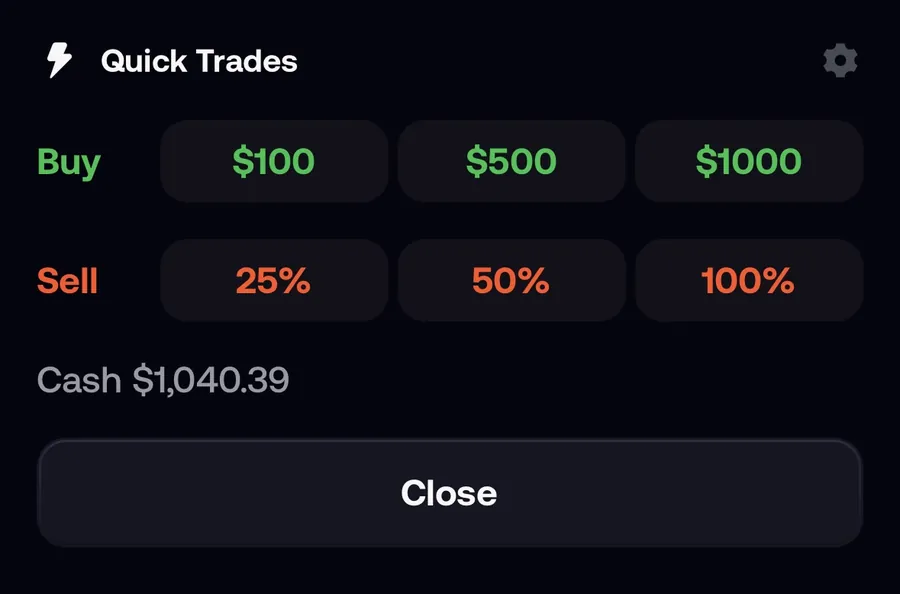
Quick Trades lets you buy or sell a token on Fomo with one tap. On a token page, tap the lightning bolt next to Buy and Sell, then tap a chip: a dollar amount to buy, or a percentage of your position to sell. The order goes straight through, with no amount to type and no slide to confirm.
That speed is the whole idea, and it's also the danger, since one tap on the 100% chip sells everything. Quick Trades is in the iOS and Android apps only; the web has its own one-click tools, covered at the end.
How to open and set up Quick Trades
- Open any token page in the app. If you don't see a lightning bolt next to Buy and Sell, update the app from the App Store or Google Play.
- Tap the lightning bolt. The panel opens with a row of Buy chips, a row of Sell chips if you hold the token, and your available cash. The bolt button reads Close while the panel is open.
- Tap the settings icon on the panel to open Quick Trades settings.
- Set three Buy amounts in dollars and three Sell amounts as percentages.
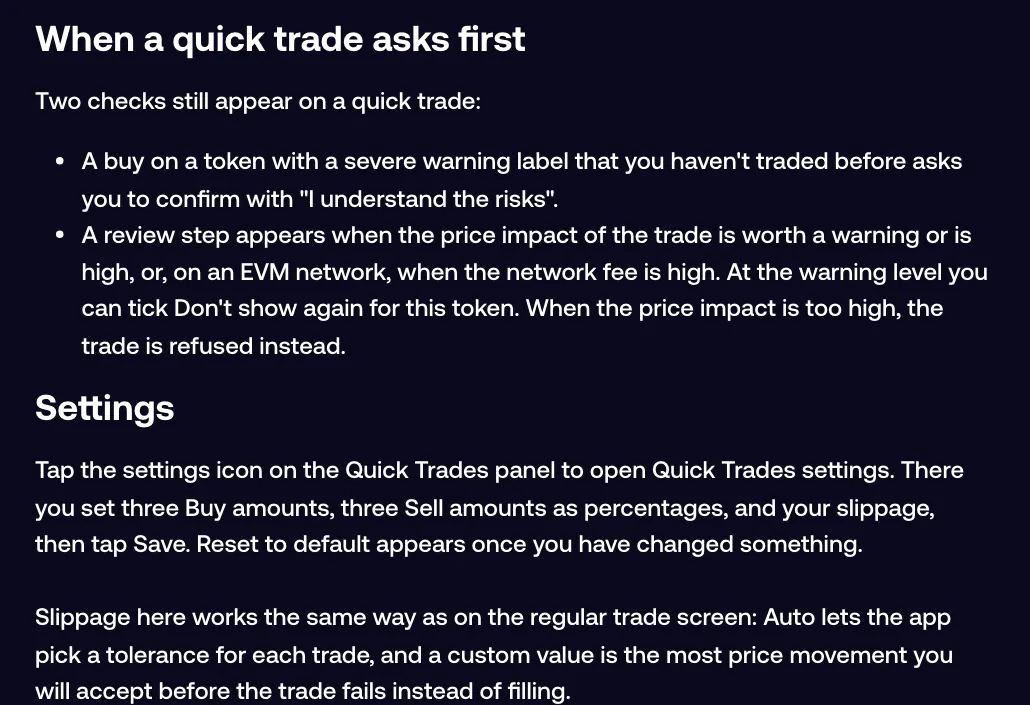
- Check the slippage switch, then tap Save. Reset to default appears once you've changed something.
The same panel is available on an open position, so you can trim from your holdings without going back to the token page.
What a chip does
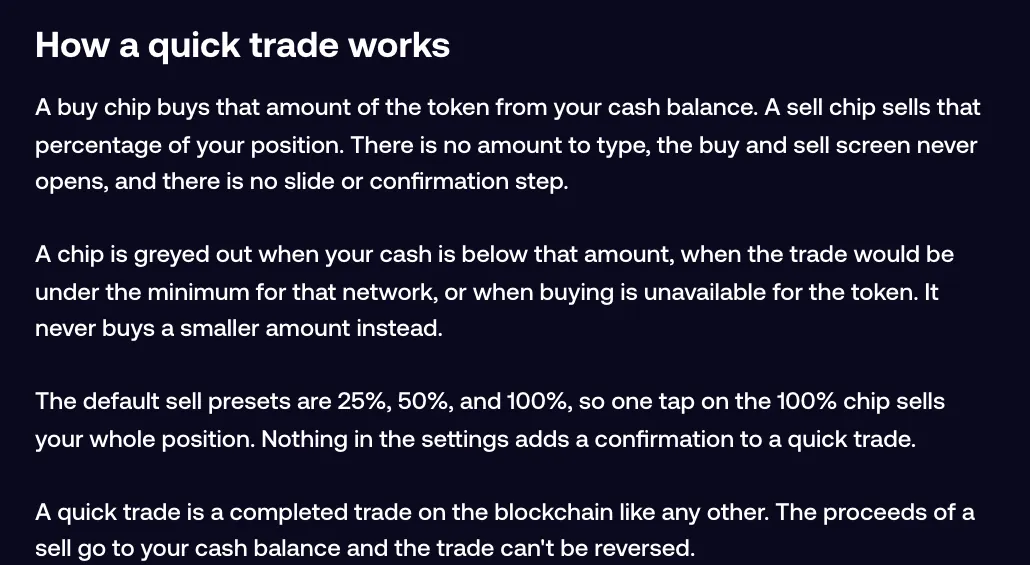
A buy chip spends that amount from your cash balance on the token. A sell chip sells that percentage of your position, and the default sell chips are 25%, 50% and 100%. The proceeds of a quick sell go to your cash balance, and like any trade on Fomo it can't be reversed.
A chip turns grey when your cash is below its amount, when the trade would be under the network's minimum, or when buying is unavailable for the token. It never buys a smaller amount instead.
| Regular buy and sell screen | Quick Trades | |
|---|---|---|
| Amount | Type it or tap a percentage | A preset chip |
| Confirmation | Slide to confirm | None |
| Price impact estimate | In the details before you confirm | Not shown first; a review appears only at warning level |
| Slippage | Slippage row in the details | Quick Trades settings |
When a quick trade still stops to ask
Two checks survive the one-tap design. A buy on a token with a severe warning label that you haven't traded before asks you to confirm with "I understand the risks". A review step also appears when the price impact is high enough for a warning, or on an EVM network when the network fee is high. At the warning level you can tick Don't show again for this token, and when price impact is too high the trade is refused.
What Quick Trades can't do is ask first on every trade. Nothing in the settings adds a confirmation, so if you want a confirm step, use the regular screen.
Slippage in Quick Trades
Quick Trades settings has an Auto slippage switch, and it works the same way as on the regular screen. Auto lets the app pick a tolerance for each trade, and a custom value is the most price movement you'll accept before the trade fails instead of filling. A quick trade never opens the trade details, so this screen is the only place you'll see the setting before you tap. Picking a value is covered in what slippage is on Fomo.
How to turn it off
Tap Close, the same button that opened the panel. The chips go away and you're back to the regular Buy and Sell buttons, which take you to the screen with the slide to confirm. Fomo's help center doesn't describe a switch that removes the lightning bolt, so in practice "off" means keeping the panel closed.
How to avoid buying by accident
- Close the panel when you're done. While it's open, a stray tap on a chip is a real trade.
- Set buy amounts you could live with as a mistake. A $1,000 chip next to a $100 chip is easy to hit with a thumb.
- Change the sell chips if you mostly trim. Sell amounts are yours to set, and a set without 100% leaves the full exit to the regular screen, where selling a token takes a slide.
- Use the regular screen on thin or brand-new coins, where you can read the price impact before you commit.
- After an error, check History (the clock icon on your profile) before you tap again, so a retry doesn't double the buy.
One-click trading on the web
Quick Trades itself is phone only. On fomo.family, the closest tools are Quick buy on the Discover page and the lightning button on each row of your open positions list, with buy presets in dollars and sell presets in percent. Quick buy spends an amount you set in the table header, from 2 to 5,000 USD, and it skips the price impact review the token page shows. The web's one-tap presets are separate from your phone presets and are set in Swap settings. The Discover page has its own guide: finding tokens with Fomo Web Discover.
Common questions
Is Quick Trades a trading bot?
No. Every quick trade is one you tap yourself. Fomo has no bot or auto-trader, and its terms ban scripts and bots that execute trades on an account.
Why is a chip greyed out?
Your cash is below that amount, the trade would be under the network minimum, or buying is unavailable for the token.
Can I undo a quick sell?
No. It's a completed on-chain trade, and the money is already in your cash balance.
 Written by Mohammad ShahpariCrypto and SEO specialist
Did this answer your question?
Thanks for the feedback.